
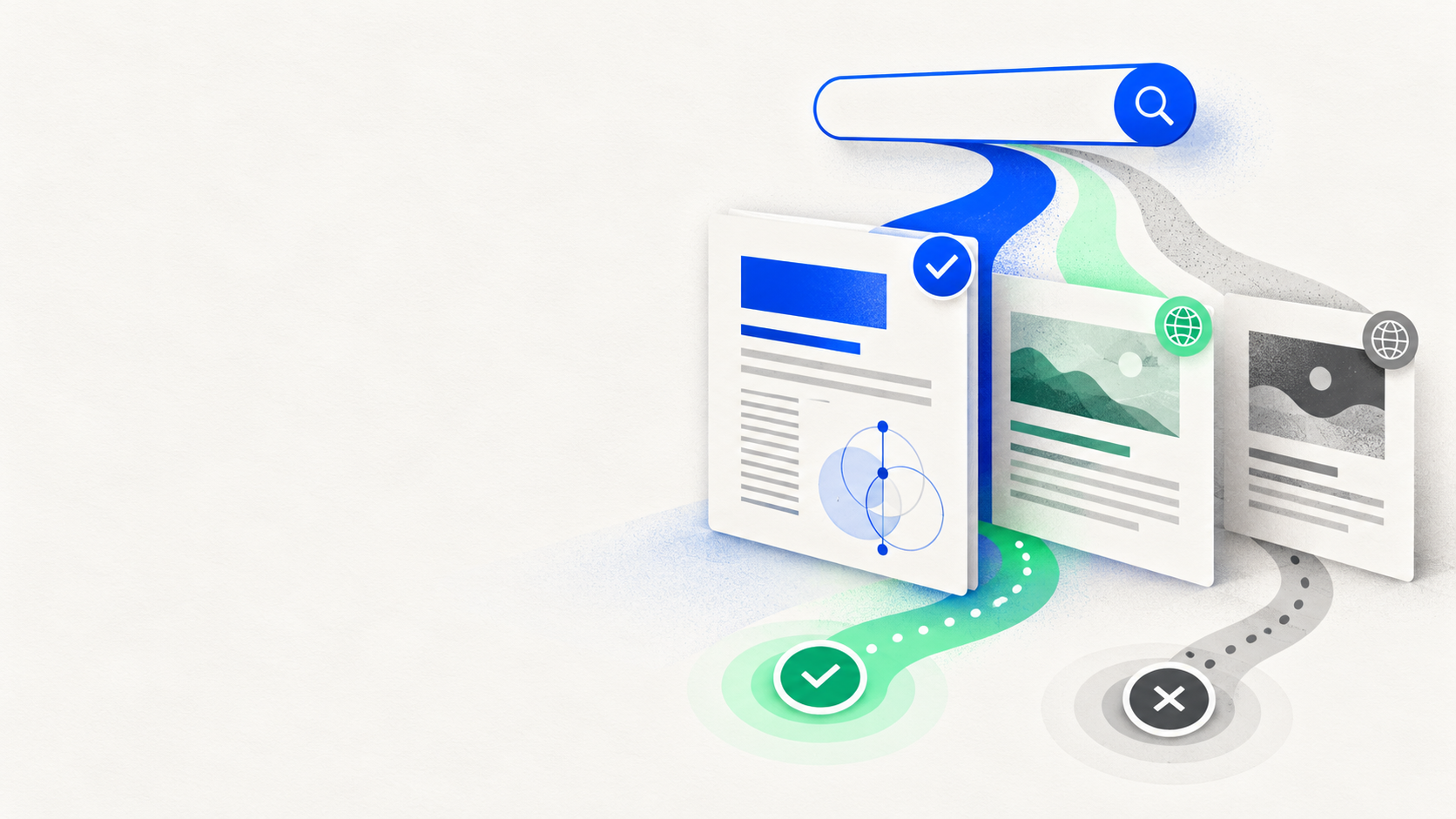
You have six papers in a notebook and need a seventh. Do you have to find it yourself before NotebookLM can help? No. NotebookLM, now called Gemini Notebook, can search the web for new sources. It can also help you read the papers you bring in.
The catch is in the word sources. A search may return a paper, a review, or a university page about a paper. If you need a reading list for a literature review, the useful work starts when you sort those results. Here is how I would do it without turning a quick search into an afternoon of opening unrelated tabs.
How does NotebookLM find papers I haven't uploaded?
Open the Sources panel and search the web from there. Fast Research gives you a set of results to inspect and import. Deep Research takes longer, builds a report, and lets you review the sources behind it. Google's help page describes both options. You choose which results become notebook sources.
For a first pass, I would start with Fast Research. You can usually tell within a few results whether the search is finding studies or drifting toward general background. If it drifts, fix the question before asking for a larger report.
For example, “sleep and students” is broad enough to bring back study tips and wellness articles. A better search request is:
Find original studies and recent reviews on sleep interventions and academic performance in university students. For each result, show the research paper itself where possible, rather than a page describing it.
You can use the same pattern for your topic: name the people, the intervention or phenomenon, and the outcome you care about. If you're still finding the wrong people, build better search terms from a few relevant papers.
Why do some results lead to pages about a study?
A web search looks for relevant pages. The page that explains a study most clearly is not always the paper. A university news story might mention a striking result but leave out the sample or methods you need to judge it.
Before saving a result as a paper, open it. Look for the title, authors, year, journal or repository, and a DOI or other stable record. Then read the abstract. In the sleep example, a study of shift workers could be perfectly real and still have little to say about university students.
When a result is a news page, follow its link to the original study or search the exact title. PubMed's user guide shows how to look up a specific biomedical citation by title or publication details. If the paper is hard to locate, keep the lead in your notes and move on for now. Our guide to checking academic citations covers the longer version of that check.
One more detail is easy to miss: when you add an ordinary web URL, Gemini Notebook imports the page's text. It doesn't follow every link or bring in images and embedded videos. A PDF URL is treated as a PDF source. If your answer depends on a table or figure, open the paper itself.
What if I need a set of actual papers, not more web pages?
At that point, I would switch from web discovery to paper search. You have a usable question and perhaps a few terms from the good results. Search those in a scholarly index, a subject database, or a tool built around academic papers.
WisPaper Search is one way to make that switch without rebuilding your question as a long Boolean string. Try: “Find studies of sleep interventions and academic performance among university students.” Its paper cards show publication details and short summaries so you can decide which records to open. Save promising papers to My Library; once you've collected a set, Library QA lets you ask questions across those papers. For instance: “Which studies enrolled university students, what intervention did each use, and how was academic performance measured?”
That is the point where WisPaper is useful in this workflow: you have moved from an interesting web result to papers you can actually inspect and compare. Read the methods for the papers you plan to cite. A short summary is good at helping you choose what to open; the paper is where the evidence lives.
If you're doing a systematic review, keep a separate record of your database searches, dates, and eligibility rules. The Cochrane Handbook explains why that search has to be planned and documented. For a class paper or an early literature review, a smaller, carefully checked reading set may be the right place to begin.
Which results should I bring back into NotebookLM?
Bring in the papers you have a reason to read. A review can map the field; a few original studies can show how the question was tested. You don't need to import every page the search found.
With those sources selected, ask a narrower question than “Summarize these papers.” Try: “Which studies involved university students? How did each measure academic performance? Where do their findings differ?” Now the answer helps you decide what to read closely, rather than giving you one smooth paragraph about a pile of mixed sources.
If you start with one especially useful paper, check its references and newer papers that cite it. Citation chasing often takes you to the next paper faster than another vague search. The seventh paper may already be in the first six papers' reference lists.
FAQs
Keep Reading
Can Perplexity Find Papers That Google Scholar Misses?
See why Perplexity and Google Scholar return different papers, what each search route misses, and how to verify useful results.
How to Catch Up on a Research Topic After Six Months Away
Catch up on a research topic after six months by rerunning saved searches, screening updates, and rebuilding your evidence map.

ChatGPT Found a Paper You Can't Find: What to Check First
ChatGPT gave you a paper that does not appear to exist. Check its DOI, title, authors, alternate versions, and metadata before removing or replacing the citation.